Passkeys Explained: How Passwordless Authentication Works
- A passkey replaces your password with a key pair: the private key stays on your device, the website stores only a public key.
- Passkeys are bound to the real website's address, which makes them resistant to phishing.
- Apple, Google and Microsoft all support passkeys, and password managers can sync them across platforms.
- Synced passkeys survive a lost phone, so the account that stores them needs the strongest protection.
- The FIDO Alliance estimated about 5 billion passkeys in use worldwide in May 2026.
- What is a passkey, in plain terms?
- How passkeys work: FIDO2, WebAuthn and public-key cryptography
- Passkeys vs. passwords vs. MFA: how they compare
- How to set up passkeys on Apple, Google, Microsoft and password managers
- Signing in on a device that does not have your passkey
- Syncing, recovery and moving passkeys between managers
- Are passkeys safe? The limits worth knowing
- Passwordless authentication at work
- Passkey adoption by the numbers
- The future of passwords and 2FA
A passkey is a sign-in credential that replaces your password with a pair of cryptographic keys. One key, the private key, stays on your phone, computer or password manager and never leaves it. The other, the public key, is stored by the website or app. When you sign in, the site sends a challenge, your device signs it with the private key after you unlock it with your face, fingerprint or screen PIN, and the site checks the signature with the public key. There is nothing to type, nothing to remember and nothing reusable for a thief to steal from the site's servers.
That is the core of passkeys explained in one paragraph, and it is why passkeys have become the main form of passwordless authentication on consumer services. They are built on open standards from the FIDO Alliance and the World Wide Web Consortium (W3C), supported by Apple, Google and Microsoft, and by the FIDO Alliance's estimate in May 2026, about 5 billion passkeys are now in use worldwide. Below is how they work, how to set them up on each platform, how syncing and recovery work, and where their limits still are.
What is a passkey, in plain terms?
Think of a passkey as a digital key cut for one specific lock. Each passkey belongs to one account on one website or app. Your device creates it when you choose "Create a passkey" in an account's security settings, and from then on it unlocks that account and nothing else.
Three properties set passkeys apart from passwords:
- Nothing secret is shared. With a password, you and the website both know the secret, so a breach of the website's database can expose it. With a passkey, the website stores only a public key, which is useless to an attacker on its own.
- It only works on the real site. A passkey is bound to the web address it was created for. If a phishing page at a look-alike address asks for it, your device simply has no passkey for that address and offers nothing to steal.
- Unlocking happens locally. Your fingerprint, face scan or PIN is checked by your own device to release the private key. Your biometric data is not sent to the website.
Passkeys come in two forms. Synced passkeys are stored in a credential manager such as iCloud Keychain, Google Password Manager or a third-party password manager and copied, encrypted, to your other devices. Device-bound passkeys live on a single piece of hardware, typically a physical security key, and cannot be copied. Most consumers use synced passkeys; high-security workplaces often require device-bound ones.
How passkeys work: FIDO2, WebAuthn and public-key cryptography
Passkeys are the consumer-friendly name for credentials defined by the FIDO2 set of standards. FIDO2 has two parts. WebAuthn (Web Authentication), published by the W3C, is the interface that lets a website ask a browser to create or use a credential. CTAP (Client to Authenticator Protocol), published by the FIDO Alliance, lets the browser or operating system talk to an authenticator, whether that is the phone's secure hardware or a USB, NFC or Bluetooth security key.
Creating a passkey
- You choose to add a passkey in an account's settings.
- The website sends a registration request that includes its own identifier, essentially its domain.
- Your device asks you to confirm with your fingerprint, face or PIN, then generates a fresh key pair just for this account on this site.
- The private key is saved in your credential manager; the public key and an identifier are sent to the website and stored with your account.
Signing in with a passkey
- The website sends a random, one-time challenge.
- Your browser checks that the site's domain matches the passkey's domain, then asks you to unlock your device.
- Your device signs the challenge with the private key and returns the signature.
- The site verifies the signature using the public key it stored. If it matches, you are in.
Because the challenge changes every time, an intercepted signature cannot be replayed. Because the browser enforces the domain check, the user does not have to spot a fake site; the protocol does it for them. That is the property security professionals call phishing resistance, and it is the main reason passkeys are treated as stronger than a password plus a text-message code.
Passkeys vs. passwords vs. MFA: how they compare
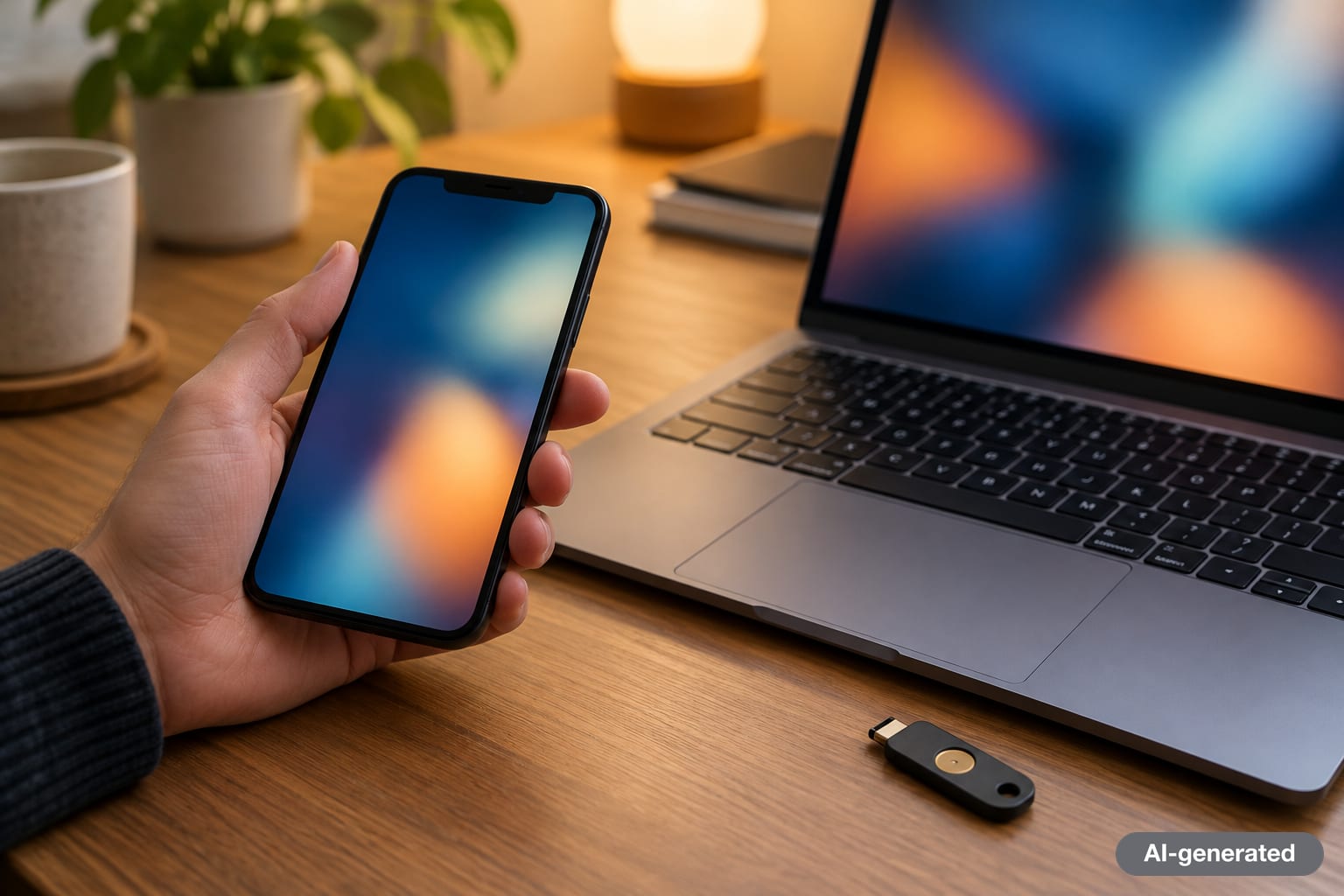
A common question is "passwordless authentication vs. MFA": are passkeys a replacement for multi-factor authentication or just another factor? In practice, a passkey already combines two factors in one step: something you have (the device holding the private key) and something you are or know (the biometric or PIN that unlocks it). Many services therefore treat a passkey sign-in as satisfying their MFA requirement on its own.
| Method | What the user does | Resists phishing? | Secret stored by the site | Main weakness |
|---|---|---|---|---|
| Password only | Types a memorized string | No | A password hash that can be cracked if leaked | Reuse, guessing, phishing, breaches |
| Password + SMS code | Types password and a texted code | No | Password hash and phone number | Codes can be phished or diverted by SIM swaps |
| Password + authenticator app | Types password and a time-based code | No | Password hash and a shared code secret | Codes can still be typed into a fake site |
| Push approval | Taps "approve" on a phone prompt | Partly | Password hash | Users can be pressured into approving fake prompts |
| Passkey (synced) | Unlocks device with face, fingerprint or PIN | Yes | Public key only | Security depends on the account that syncs it |
| Passkey on a hardware security key | Inserts or taps the key and enters a PIN or touches it | Yes | Public key only | Losing the key without a backup |
The numbers from early adopters back this up. In a May 2025 post, Microsoft reported that people signing in with passkeys succeeded about 98% of the time, compared with about 32% for passwords, and that passkey sign-ins were eight times faster than a password plus multi-factor authentication. The same post said Microsoft was seeing roughly 7,000 password attacks per second, more than double its 2023 rate.
How to set up passkeys on Apple, Google, Microsoft and password managers
You usually create passkeys one account at a time, from the account's own security settings or when a site offers one at sign-in. The platform you use decides where the passkey is stored.
Apple: iPhone, iPad and Mac
Apple added passkey support with iOS 16 in 2022. Passkeys are saved to iCloud Keychain, which Apple describes as end-to-end encrypted with keys Apple does not know, and they sync across your Apple devices. To use them, iCloud Keychain needs to be switched on (on an iPhone, Settings > your name > iCloud > Passwords) and your Apple Account needs two-factor authentication. When a site or app offers a passkey, confirm with Face ID or Touch ID. You can view and manage saved passkeys in the Passwords app on recent versions of iOS and macOS.
Google: Android, Chrome and your Google Account
Google made passkeys the default sign-in option for personal Google Accounts on October 10, 2023. By May 2024, the company said, passkeys had been used more than 1 billion times across over 400 million Google Accounts. To create one for your Google Account, open the Security section of your Google Account settings and choose passkeys. On Android, passkeys for other sites are saved to Google Password Manager by default and are available on your other signed-in Android devices and in Chrome.
Microsoft: Windows and Microsoft accounts
Microsoft has supported passkeys for consumer Microsoft accounts since 2024 and, on May 1, 2025, announced that brand-new Microsoft accounts would be "passwordless by default," with existing users able to delete their password entirely from their account settings. On Windows, passkeys are protected by Windows Hello, which Microsoft says is used by more than 99% of people who sign into Windows with a Microsoft account. To add a passkey, open your Microsoft account's security settings, choose to add a new way to sign in, and pick face, fingerprint, PIN or security key.
Third-party password managers
Major password managers, including 1Password, Bitwarden and Dashlane, can store passkeys and sync them across operating systems. This is the most practical option if you use, say, an iPhone with a Windows laptop. When a site asks to create a passkey, your phone or browser will offer to save it in whichever manager you have set as the default for passwords and passkeys.
Start with the accounts that unlock everything else: your email, your Apple Account, Google Account or Microsoft account, and your password manager. Then add passkeys to banking, shopping and social media accounts that offer them. Keep your existing recovery methods until you have confirmed you can sign in on every device you use.

Signing in on a device that does not have your passkey
A frequent worry is what happens on a computer that is not yours, or on a Windows PC when your passkeys live on an iPhone. The FIDO standards handle this with cross-device sign-in. The computer shows a QR code; you scan it with your phone, which checks over Bluetooth that it is physically near the computer, then you unlock the phone and it completes the sign-in. The private key never leaves the phone. The proximity check matters: it stops an attacker from simply sending you a QR code from a remote phishing page.
If you regularly use a computer outside your usual ecosystem, a cross-platform password manager or a hardware security key avoids the QR step altogether.
Syncing, recovery and moving passkeys between managers
Syncing is what made passkeys practical for ordinary users. Early FIDO credentials were tied to one device, and losing that device meant going through account recovery. Synced passkeys survive a lost or replaced phone, because they come back when you sign into your Apple Account, Google Account or password manager on the new device.
That shifts the security question to the sync account. If someone takes over the account that holds your passkeys, they can potentially use them. Treat that account as your most important one: give it strong protection, keep its recovery options current, and, with Apple, consider a recovery contact or recovery key; with Google, keep your recovery phone and email up to date.
What if you lose every device?
- Apple: recovering your Apple Account through Apple's account recovery process, a recovery contact or a recovery key restores iCloud Keychain, including passkeys, on a new device.
- Google: signing into your Google Account on a new device and verifying your identity restores passkeys saved in Google Password Manager; Google may ask for your previous device's screen lock to decrypt them.
- Any service: keep at least one backup sign-in method, such as a second passkey on a hardware key or a recovery code stored somewhere safe.
Moving passkeys between ecosystems
For years, passkeys were hard to move from one manager to another. The FIDO Alliance's Credential Exchange specifications, the Credential Exchange Protocol (CXP) and Credential Exchange Format (CXF), define a secure, encrypted way to transfer passkeys and passwords between credential managers. Support began rolling out in 2025; Bitwarden, for example, announced in September 2025 that it could exchange credentials with Apple's Passwords app on iOS 26 using the protocol. The lock-in concern is fading, though support is not yet universal.
Are passkeys safe? The limits worth knowing
Passkeys are a real step up, but they are not magic. The honest list of drawbacks looks like this:
- Not every site supports them yet. You will still need a password manager for accounts that only offer passwords.
- Fallbacks can undo the benefit. If an account still accepts a password or an SMS code as a backup, an attacker can target that weaker path. Where a service allows it, remove the password once your passkey works everywhere you need it.
- The sync account becomes the crown jewel. Synced passkeys are only as safe as the Apple, Google, Microsoft or password manager account behind them.
- Shared accounts are awkward. Passkeys assume one person per credential. Some managers let you share a passkey with family, but behavior varies.
- Older devices may not support them. Very old phones and operating systems lack passkey support.
- Anyone who can unlock your phone can use your passkeys. If someone knows your phone's PIN, they can approve sign-ins. A strong device passcode matters more than ever.
The U.S. government's own guidance has caught up with synced passkeys. In its digital identity guidelines (Special Publication 800-63B-4, finalized in July 2025), the National Institute of Standards and Technology (NIST) sets out requirements for "syncable authenticators" and allows them at its middle tier of assurance, AAL2, provided the sync service itself is well protected. The highest tier, AAL3, still requires keys that cannot be exported, which in practice means device-bound passkeys such as hardware security keys.
Passwordless authentication at work
In workplaces, passwordless authentication usually means passkeys or other FIDO2 credentials managed by the company's identity provider, such as Microsoft Entra ID, Okta or Google Workspace. Employees sign in with Windows Hello, a phone-based authenticator app holding a passkey, or a hardware security key. The FIDO Alliance's 2026 research found that 68% of organizations surveyed had deployed or were deploying passkeys for employee sign-ins, while 57% still relied on passwords for day-to-day sign-in.
Developers will also see "passwordless" used for older techniques, such as SSH key authentication on Linux servers or one-time "magic links" sent by email. SSH keys use the same public-key idea as passkeys but are managed by hand; magic links remove the password but are only as secure as the email account and can still be phished.
Passkey adoption by the numbers
The FIDO Alliance's State of Passkeys 2026 report surveyed 11,000 consumers and 1,400 enterprise decision-makers in ten countries, including the United States. It found that 49% of people use passkeys regularly when they are available, and that one in three had experienced an account compromise or a breach notification in the previous year, a reminder that passwords still do damage.
The future of passwords and 2FA
Passwords are not disappearing overnight. Most services will keep them as a fallback for years, and the six-digit code from an authenticator app will stay common. But the direction is clear. The three largest platform companies committed together in May 2022 to expand passkey support, and since then each has made passkeys the default or the recommended way to sign in. New accounts on major services increasingly never get a password at all.
For everyday users, the practical takeaway is simple: say yes when a site you trust offers a passkey, protect the account that stores them, and keep one backup sign-in method. For more on securing your devices, read our guide on how to tell if your phone is being monitored, see how AI is changing professional work in will AI replace lawyers, or browse the rest of our tech coverage.

Frequently asked questions
What is the difference between a passkey and a password?
A password is a secret you and the website both know, so it can be guessed, reused, phished or leaked in a breach. A passkey is a key pair: the private key stays on your device and the site stores only a public key, so there is no shared secret to steal, and it only works on the website it was created for.
Can passkeys be hacked?
Passkeys resist phishing and server breaches, but they are not invulnerable. Someone who can unlock your phone, or who takes over the Apple, Google, Microsoft or password manager account that syncs your passkeys, could use them. Protect those accounts and your device passcode.
What happens to my passkeys if I lose my phone?
Synced passkeys are restored when you sign into your Apple Account, Google Account or password manager on a new device. Device-bound passkeys on a lost hardware key are gone, so keep a backup sign-in method for every important account.
Is a passkey the same as two-factor authentication?
A passkey combines two factors in one step: possession of the device holding the private key and the biometric or PIN that unlocks it. Many services treat a passkey sign-in as meeting their multi-factor requirement, and it is more resistant to phishing than codes sent by text.
Does the website get my fingerprint or face data?
No. Your fingerprint, face scan or PIN is checked by your own device to unlock the private key. The website only receives a cryptographic signature.
Can I use a passkey from my iPhone on a Windows PC?
Yes. The PC can show a QR code that you scan with your iPhone; the phone confirms it is nearby over Bluetooth and completes the sign-in. A cross-platform password manager is another option.
Sources
- FIDO Alliance: World Passkey Day 2026 and State of Passkeys report
- FIDO Alliance: Credential Exchange Specifications
- W3C: Web Authentication (WebAuthn)
- Apple Support: About the security of passkeys
- Apple Developer: Passkeys
- Google: Passwordless by default (October 10, 2023)
- Google: Passkeys update (May 2024)
- Microsoft Security Blog: Pushing passkeys forward (May 1, 2025)
- NIST SP 800-63B-4: Authentication and Authenticator Management
- NIST: Syncable Authenticators
- Bitwarden: Credential Exchange on iOS 26


Log in to comment
No comments yet. Be the first.